Group of Venues
Group of venues in Kasyro POS: sales of all venues on your phone, missing closings, an accountant export, shared staff and products and stock transfers between venues.
If you run several venues (each as its own company in Kasyro), you can join them into a Group and follow them from one device — a phone, tablet or computer that isn't a register. The venues' registers keep working as before; they don't know about the Group and sell even without the internet.
If you don't need a Group, there's nothing to do: the register, the office and the company settings never offer it.
What comes with which plan:
- Premium — venues with a Premium licence belong in the Group. The sales overview, alerts, venue detail and managing venues and people with access work at no extra charge.
- Enterprise contract — adds the accountant export, shared products, transfers and staff between venues, and setting up new venues straight from the Group. See Enterprise contract.
Personal account
You sign in to the Group with a personal account — your own email and password. It must be a different email from any company's sign-in:
- an email a company signs in with can't be used for a personal account (“This e-mail is already in use elsewhere — as a business login or another account. Use your personal e-mail for the group.”);
- a personal account never downloads company data and can't be used to sell.
Getting started
A Group opens only on a device that has no company — on the welcome screen where you choose the demo or creating a company:
- Tap Group of venues.
- Choose Create a group (a new personal account: your name, personal email, password and the Group's name), or Sign in to a group if you already have a personal account. If you were invited to someone else's Group, leave the Group name empty.
- The device becomes a Group device: every later start opens the Group directly.
A device is either a register or a Group. A register that already has a company can't be switched to a Group.
What you see
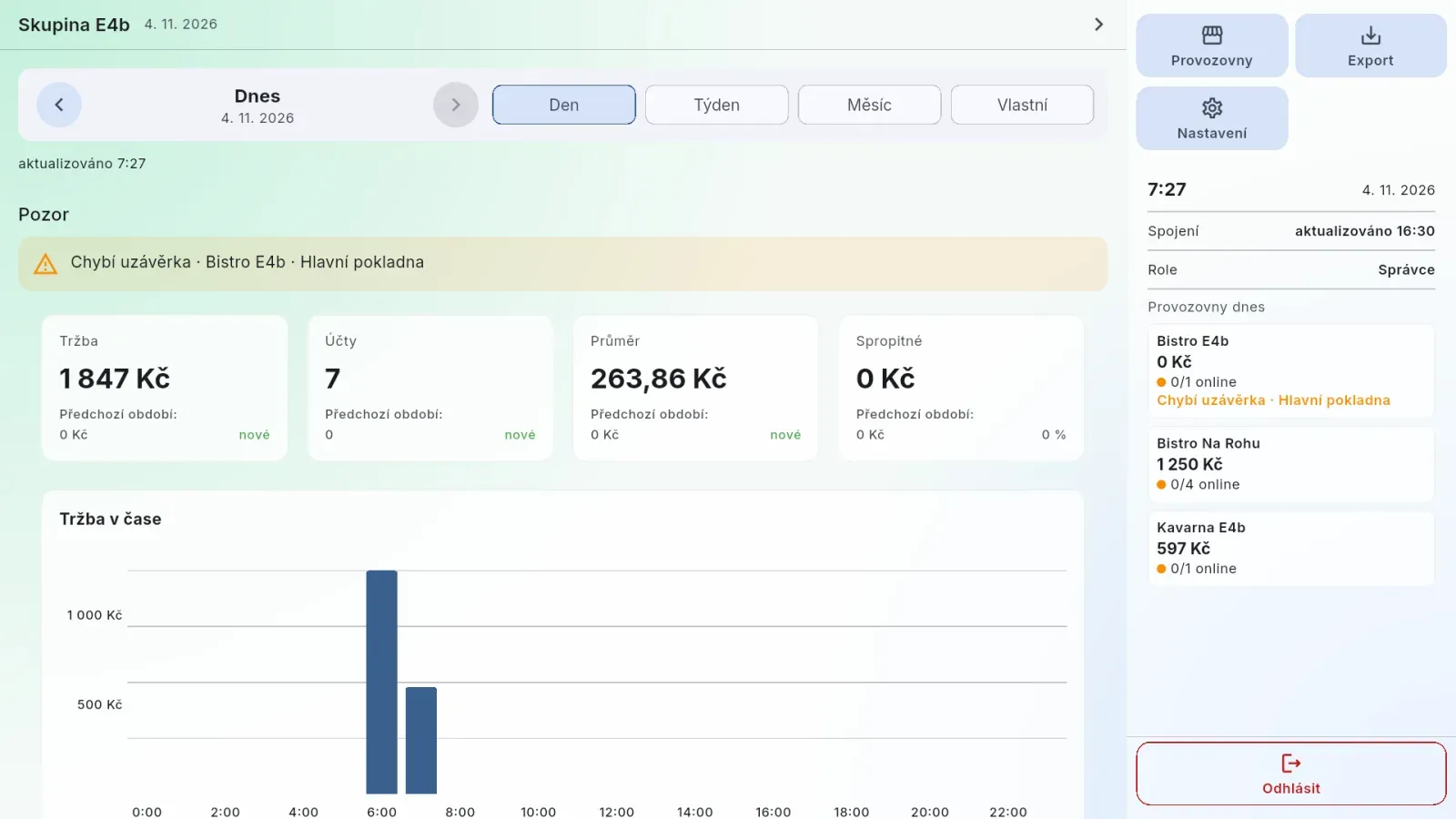
A Group device looks like a venue's office. At the top is the Group's name (if you have several, tap the name to switch) and today's date; on the right is a panel with buttons — on a phone, the buttons are in the bottom bar:
| Button | What's there |
|---|---|
| Overview (home screen) | The Group's sales for the chosen period, Attention and below it the venues with sales, register status and licence; tap a venue to open it |
| Transfers | Stock transfers between venues — see Transfers |
| Export | A sales summary per business ID for the accountant as a PDF — see Accountant export |
| Settings | Appearance of this device, the Group's venues, people with access, sharing, the Group and your personal account |
Transfers, Export and Settings open full screen; the arrow at the top left takes you back to the Overview.
The panel shows Connection (when the data was last loaded), your role in the Group and Venues today: for each venue today's sales, how many registers are online (for example “1/2 online”) and, in orange, what needs attention — a missing closing or a cash difference. Venues today always shows today and refreshes itself every minute. At the bottom is Sign out (on a phone, in Settings → Personal account). Pull the screen down to reload the data.
Without internet the device shows the last loaded state with “No connection to the server — last state from …”. Changes in Settings aren't possible offline.
Sales overview
At the top, choose the period just as in Reports — Day, Week (from Monday), Month, Year or a Custom range (at most one year). Each venue counts its days in its own time zone. The Overview has Dashboard and Taxes tabs.
- Attention appears only when there is something to report: a missing closing (a shift open past 4:00 a.m., i.e. still from the previous day) or a cash difference at a register's last closing.
- Dashboard is the same as the Dashboard in the office Reports, just added up across all venues: sales, number of bills, average bill and tips compared with the previous period, the sales chart, payments, categories, best-selling items and sales by day and hour. If the venues use different currencies, it adds up those in the currency with the highest sales and lists the others.
- Taxes — total, net, VAT and rounding with a breakdown by rate for the chosen period.
- Each venue shows its sales, number of bills, average bill and register status: “2 registers online”, or “Register 1 offline since 8:12”. An offline register keeps selling — its data arrives once it reconnects.
Only some venues: the filter icon next to the period opens a Filter where you tick the venues you want to see. The overview then counts only those. Nothing ticked means all venues.
Other reports (receipts, sales, shifts, closings, cash book) are in the office of the venue concerned.
Venue
Tapping a venue opens what its office sees — read-only:
- Operations — today's sales, open bills, discounts, refunds and voids, registers with shifts and who's signed in, devices and Recent (today's receipts, discounts, refunds, vouchers, reservations and stock). Refreshes every minute.
- Dashboard — the venue's Dashboard for the chosen period and below it Staff (by who took the payment).
- Taxes — as in the office Reports.
- Catalog — the venue's products: code, name, category, price, VAT rate, supplier and purchase price. If the venue is in a product circle, each item shows whether it is shared or own.
- Inventory — quantity, minimum, purchase price and value; quantities below the minimum are orange, negative ones red.
Bills, documents, products and stock aren't changed from here — that's done in the venue itself.
Venues
Venues with a valid Premium licence belong in the Group, because only they have data on the server (a venue on Free moves to Premium first — see Subscription). A venue belongs to at most one Group.
Add an existing venue (Group administrators only): in Settings → Venues, tap Add an existing venue and enter that company's sign-in email and password. The password is used for this one connection only; the device doesn't remember it. The company immediately receives an email saying it was added to the Group.
Removing a venue: an administrator taps the venue in Settings → Venues and confirms Remove. The venue stays as it is — its registers and data don't change — and receives a notice by email. A company that doesn't know about being added, or wants to leave the Group, writes to info@kasyro.com and we'll remove it.
Enterprise contract
Enterprise is a tailored contract for the Group — write to info@kasyro.com with what you need (number of venues, sharing, API access, accountant export, support) and you'll get an offer. Once agreed, we switch the contract on.
While the contract runs, every venue in the Group has an Enterprise licence with one end date and doesn't buy its own — an activation code can't be used in such a venue. The venue's own licence is only set aside: after the contract ends or the venue leaves the Group, it applies again as before. A Group with a contract can hold at most as many venues as the contract covers. Ten days before the contract ends, all Group administrators receive a reminder email.
Settings → Sharing shows at the top whether the Group has a contract and until when, and for each part of sharing whether the contract includes it. What isn't included is marked “Not in the Enterprise contract — write to info@kasyro.com”.
Set up a new venue
If the Group has an Enterprise contract with a free slot, an administrator sets up a new venue directly on the device that will be its main register — with no new email or password:
- On the new device, choose Create New Company on the welcome screen.
- In the first step, choose A venue of a group and enter your personal email and password. If you have several Groups, pick the one the venue belongs to.
- Fill in the rest of the wizard as for any company — the venue details and the first administrator.
- After Finish, the device is the main register of the new venue. The venue has its licence from the Group's contract and shows up in the Group overview straight away.
Such a venue has no company password of its own. Wherever the register asks for the company password (lost sign-in, taking over a register, the EET certificate, disconnecting a device, deletion), a Group administrator enters their personal email and password. A venue set up by the Group can't be removed from the Group — only deleted. Notices that would go to the company's email go to all Group administrators.
Connect a register with your personal account
An administrator connects another or a replacement register of a Group venue with their personal account — no company password needed:
- On a device without a company, choose Sign In to Existing Company on the welcome screen and, below the sign-in, tap With a group's personal account.
- Sign in with your personal email and password.
- Choose the venue and then the register. Each register shows whether it is free or which device holds it.
- The device connects, downloads the venue's data and opens the staff sign-in like any other register.
The personal account doesn't stay on the register — it then signs in on its own and sells even without the internet. Only an administrator can take over an occupied register; the device that held it stops selling on it.
Registers in a Group get a device letter so that document numbers don't repeat across venues: if the café prints 1A-… documents, a newly connected register no. 1 in the bistro prints, say, 1B-…. Registers connected before the venue joined the Group keep their letter.
People with access
You can let other people into the Group — a manager, an accountant, a partner. Each needs their own personal account.
| Role | What they may do |
|---|---|
| Administrator | Everything: sees everything, manages venues, registers, sharing, staff, people with access and the Group |
| Overview only | Sees the overview and downloads the accountant export; changes nothing |
A Group may have several administrators, all with the same rights.
Invitation with a code
- In Settings → People with access, tap Invite someone, enter their email and choose a role.
- Kasyro shows an Invitation code (8 digits). You see it only now — pass it on in person or by phone. Kasyro doesn't email anything.
- The invitee signs in to the Group on their device with a personal account using the email you invited. At the top they see Invitation to the group …, tap Accept and enter the code.
An invitation is valid for 14 days. After five wrong codes it lapses and you need to invite again. An administrator sees pending invitations in Settings → People with access and can cancel them with a tap. The invitee can also Decline.
Someone without a personal account creates one with Create a group and leaves the Group name empty — the invitation waits for them after signing in.
An administrator changes someone's role by tapping them in the list, and can remove them there too. Anyone who isn't an administrator can Leave group themselves. A Group always has at least one administrator.
Accountant export
Part of the Enterprise contract. You download the sales summary for the accountant just as on the register in Data → Export → Sales:
- In the panel, tap Export.
- On the Sales card, tap PDF.
- Choose the from–to period (this month to date is offered; at most one year) and tap Apply.
- If the Group's venues are under several business IDs, choose one. Venues without a business ID are grouped as No business ID.
- A PDF preview opens, from which you save, send or print it.
The file starts with Total for business ID, followed by each venue on its own page: sales, number of bills, average bill, tips, refund documents, payments, VAT by rate with rounding, discounts by type and sales by day.
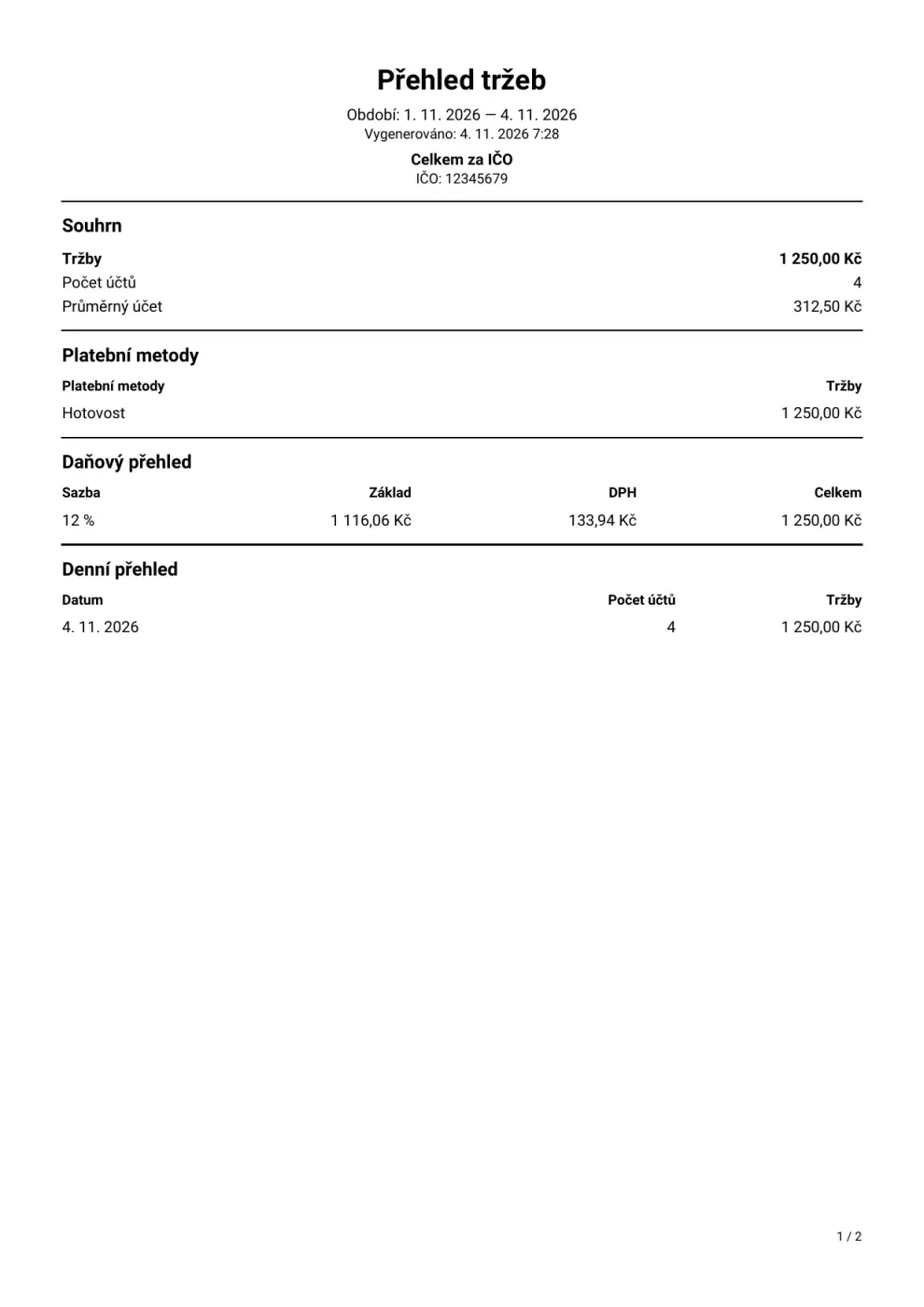
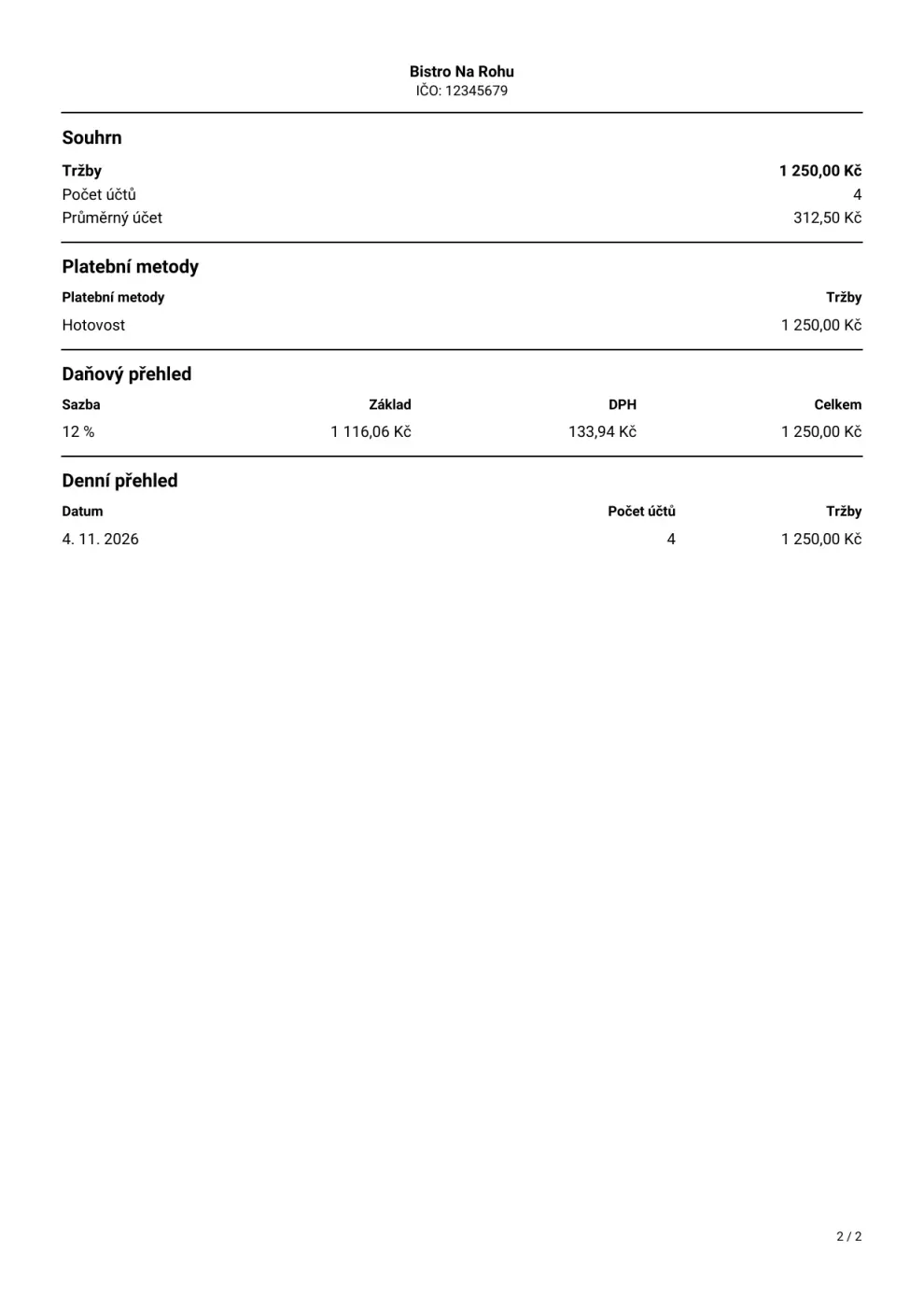
Anyone with access to the Group may download the export, including the Overview only role. The figures are on the server, so the export doesn't work without internet.
How the export differs from the sales summary on the register:
- It is calculated from issued receipts, the register's summary from bills. A paid bill without a recorded receipt is missing from the export — the PDF points this out.
- Discounts include everything the receipt lists as a discount, including payment with a gift voucher.
- Only venues currently in the Group. A removed venue is missing from the export, even for the time it belonged to the Group.
- Incomplete figures: if some receipts are still being added up, the PDF says so; download the export again later.
- One currency: the venues of one business ID must charge in the same currency, otherwise no export is created.
Products
Part of an Enterprise contract that includes sharing. When venues should sell the same products, you don't have to maintain the catalog in each one. You put the venues into a product circle and pick one of them as the source venue. You create and change products in the source venue, and the Group copies them to the circle's other venues within a minute. Registers receive them through normal sync; an offline register once it reconnects.
You'll find it in Settings → Sharing: at the top, Who shares products with whom (each venue with its circle) and Product circles. Circles load from the server, so you won't see them offline. Selling doesn't depend on it — a register sells from its own catalog even without internet.
What is shared
| Part | What it contains |
|---|---|
| Product card | Always — products, portions, categories, VAT rates, modifiers and modifier groups, recipes, suppliers, manufacturers, photos and unit |
| Price | Sale price, sale VAT rate and price levels with their prices |
| Offer | Whether the product is on sale or not |
| Purchase price | The source venue's purchase price and target margin |
Every circle shares the product card; you switch Price, Offer and Purchase price on per circle as needed. Cafés with the same products and prices have everything on; bistros with the same products but their own prices share only the product card.
Never shared: stock, the internal product number and the tile layout — each venue has its own stock levels and its own sales screen layout. A part that isn't shared is copied once when a new product is created; after that the venue changes it itself.
One direction — from the source
Shared parts are changed only in the source venue. If someone changes them on a register of another venue in the circle, the change applies for a while but reverts to the source within a quarter of an hour (the circle's history records it). What isn't shared, the venue changes itself.
Deleting a product in the source venue deletes it in all venues of the circle.
New circle
- Tap Add a circle, enter the Circle name and choose the Source venue.
- Under What is shared, tick Price, Offer or Purchase price. The product card is always ticked.
- For each venue that should be in the circle, tick Add to the circle. Kasyro immediately shows a preview for each:
- Paired — products the venue already has: matched by EAN, otherwise by name (case and accents don't matter).
- Added — what the venue doesn't have yet.
- Changed by the source — what will be overwritten in the paired products (for example the price).
- Stays this venue's own — its own products not found in the circle. Nothing is deleted.
- Not paired — the same name more than once — such products aren't created; tidy up the names in the venue.
- Tap Create.
The shared parts of an added venue are overwritten by the source, and this can't be undone. A venue can be in at most one circle. All venues in a circle must have the same currency, country and VAT registration status and must work with the server.
Circle
Tapping a circle lets you:
- change the source venue — Kasyro shows what will be aligned in the other venues, and Switch source changes it;
- switch sharing of Price, Offer and Purchase price on or off — switching on shows a preview; switching off changes nothing, the part just stops being shared;
- add a venue (with the same preview) or remove it from the circle — its products stay with it as its own;
- view the circle's history with a Problems section (for example a product whose EAN another product in the venue already has);
- rename or delete the circle — sharing ends and each venue keeps its catalog.
Each venue in the circle shows a status: “in step”, “copying, … left”, “paused: …” or “held back: …”.
Only an administrator changes circles; the Overview only role just sees them. If the contract stops including sharing or a venue leaves the Group, nothing is deleted: products stay with the venues as their own.
Transfers
A transfer moves goods from one venue's stock to another's — stock decreases in the source and increases in the target, both at once. Goods aren't “in transit” and the target venue doesn't confirm anything.
- In the panel, tap Transfers and then New transfer at the top right (Group administrators only).
- Choose From and To.
- Add goods offers products shared in both venues' product circle that track stock; each shows how much the source venue has in stock. Enter the quantities.
- Below the goods is the Total excl. VAT — the value at the source venue's purchase price. Tap Transfer.
Both venues get a document with the same number, for example PŘ-2026-0003: the source a “Transfer out”, the target a “Transfer in”. On the register you find them in Inventory → Documents (see Inventory); they can't be edited there. Cancel transfer (administrators only) reverses both sides at once.
Transfers are possible only between venues in the same product circle that sync with the server. Between companies with different business IDs, a transfer is a sale for accounting purposes; Kasyro doesn't issue an invoice — the list of transfers with prices is the basis for the accountant.
Staff
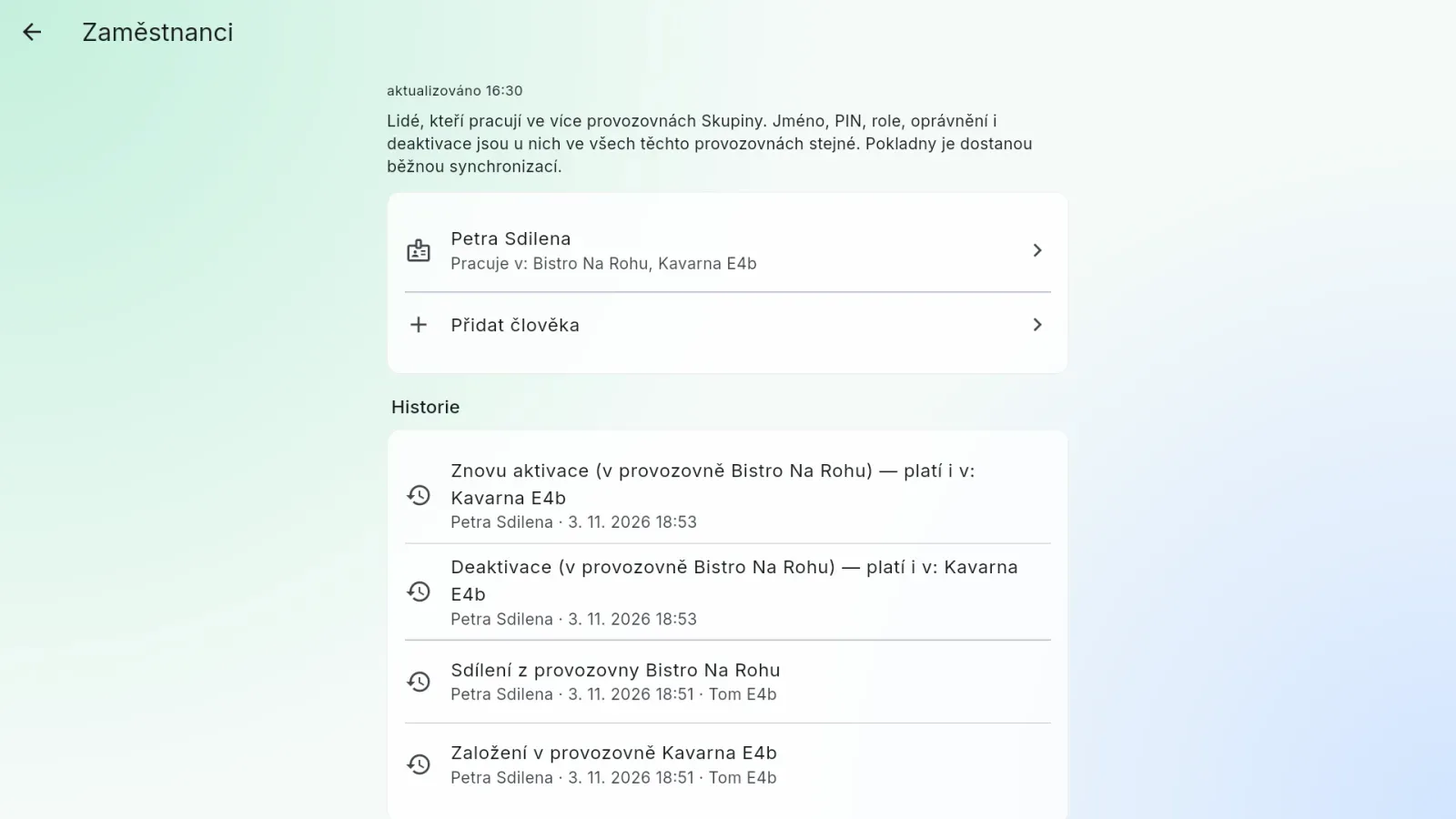
Part of an Enterprise contract that includes sharing. When one person works in several venues, you don't have to create them in each one. The Group adds them to other venues and from then on they are the same everywhere: name, username, PIN, role, permissions, email, phone and deactivation.
You'll find it in Settings → Sharing → Staff: a list of shared people with a Works in: line and below it the History — what happened to shared people, where and when.
Add a person
- Tap Add a person, choose a venue where the person already exists and pick their name there. New people are created on the register (Users); the Group only adds them to other venues.
- For each other venue, tick Works here. Kasyro says what will happen: a new person is created with the same name, PIN, role and permissions, or — if someone with the same full name is already there — it offers Pair with …. In the Person in the venue row you can choose Create a new one instead.
- Tap Save. Everything is saved at once, or nothing.
It isn't possible when another person in that venue already has the username, when the venue works without the server, when pairing would take the venue's last administrator, or when the person is already shared with someone else. Kasyro says so right at the venue.
What then happens on the registers
- A change of PIN, name, role or permissions in any venue applies in all of the person's venues. An offline register gets it after reconnecting — until then the old PIN applies there.
- Deactivation and reactivation on any register apply everywhere.
- Deleting the person on a register deletes them in all their venues.
- Reports by staff aren't added up across venues.
Editing a shared person: tap them in the list. You see their venues and when they last signed in there. Removing a venue takes it out of “Works in” — the person stays there as the venue's own. End everywhere deactivates them in all venues.
Only an administrator shares people; the Overview only role just sees the list and history. Note: anyone allowed to manage users in any of a shared person's venues can change their PIN, and the change applies everywhere.
If the contract stops including sharing or a venue leaves the Group, nothing is deleted: people stay with the venues as their own.
Group device settings
| Section | What's there |
|---|---|
| Device → Appearance | Theme, colour, screen layout and control size — for this device only |
| Group → Venues | The Group's venues with their licence; adding and removing venues |
| Group → People with access | Who can see the Group, Invite someone and pending invitations |
| Group → Sharing | The Enterprise contract and what it includes, product circles, staff and the accountant export |
| Group → Group | The Group's name and your role; an administrator renames or deletes the Group here, others can leave it |
| Account → Personal account | The email you're signed in with, Sign out and Delete personal account |
- Delete group works only for a Group without venues — remove them first.
- Sign out returns the device to the welcome screen; nothing changes in the Group.
- Delete personal account asks for your email and password again. If you're the only administrator of a Group with venues, first make someone else an administrator or remove the venues.