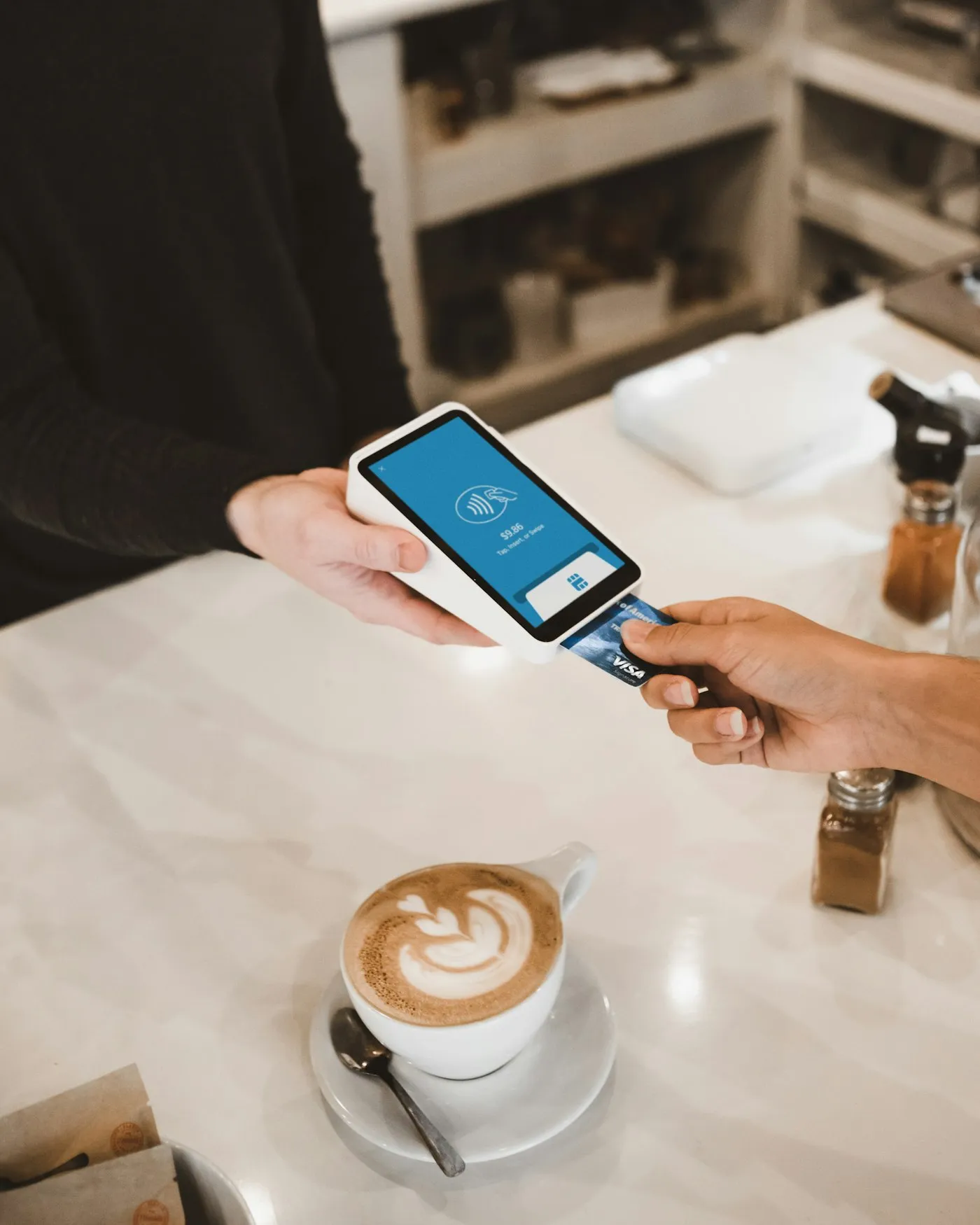
A second screen facing the guest shows every item, discount and the total the moment you ring it up. Fewer questions at payment, fewer disputes over the bill and a calmer queue.
The most expensive seconds are the ones at payment
“Hang on, we didn't have that second beer.” Anyone who has worked a counter knows the line. Staff read items out loud, the guest half-listens, the next table is waiting for their bill — and a dispute over a single item holds up the whole queue. Most of the time it isn't even a mistake; the guest simply never saw what was being rung up.
A customer display solves this in the simplest way: it is a second screen facing the guest, where the bill builds up right in front of them. They see each item the moment you add it, so any slip gets fixed straight away — not when they are already holding their card to the terminal.
Don't confuse it with the kitchen display we wrote about earlier. That one belongs in the kitchen or behind the bar and tells staff what to prepare. The customer display sits at the register and is for the guest only — nobody prepares anything from it, and the guest doesn't operate it.
What exactly the guest sees
While you ring up, the display lists the items with quantity and unit, such as “2 pcs”. Each item shows its modifiers — paid ones with their price — and notes, so the guest can check their burger really comes without onion and that the extra cheese costs what they expected. A discount on an item appears in green, with the amount.
At the bottom is the summary: subtotal, any discount on the whole bill and, in large type, the total. The display redraws on every change — adding an item, changing a quantity, applying a discount — within a few tenths of a second. The guest never sees a different number from the one they end up paying.
Once payment is complete, the display shows a thank-you with a green tick that disappears after ten seconds. When you are not ringing anything up, it shows a welcome text in large type in the middle of the screen.
The welcome text is your shop window
You set the welcome text yourself on the paired display. The default is a simple greeting, but nothing stops you using it more cleverly: point out the lunch menu, a seasonal special or the fact that you sell gift vouchers. It is a screen guests look at calmly while they wait in the queue — a shame to leave it silent.
A few practical tips. Keep the text short; people read the display from a metre and a half away, not up close. Change it regularly — nobody reads the same message after three weeks. And don't put anything on it that the guest must know before paying; in the idle state it is only visible between bills.
What the display deliberately doesn't do: the guest doesn't select, confirm or change anything on it. It is read-only. The only gesture it responds to is a triple tap on the welcome text, which disconnects the display from the register — handy when you want to move it to another register.
Up and running in a few minutes
Any tablet or monitor running the Kasyro app can serve as a customer display. You add a customer display in the register settings and pair it with a code; the main register then asks you to confirm the pairing in a dialog showing the device name and the pairing code. That way nothing connects to your register without you knowing.
The display talks to the register in real time over the internet, so both devices need a connection. Ringing up and taking payments on the register itself keeps working offline as always — without a connection, the guest just can't see their bill for a moment.
The customer display is part of the Premium license, alongside multi-device sync and cloud backups. If you already have Premium for more than one register, the display costs you nothing extra — just a tablet that may well be sitting in a drawer. And if you are wondering whether it pays off, count how many times a night someone at your register says “we didn't have that”.