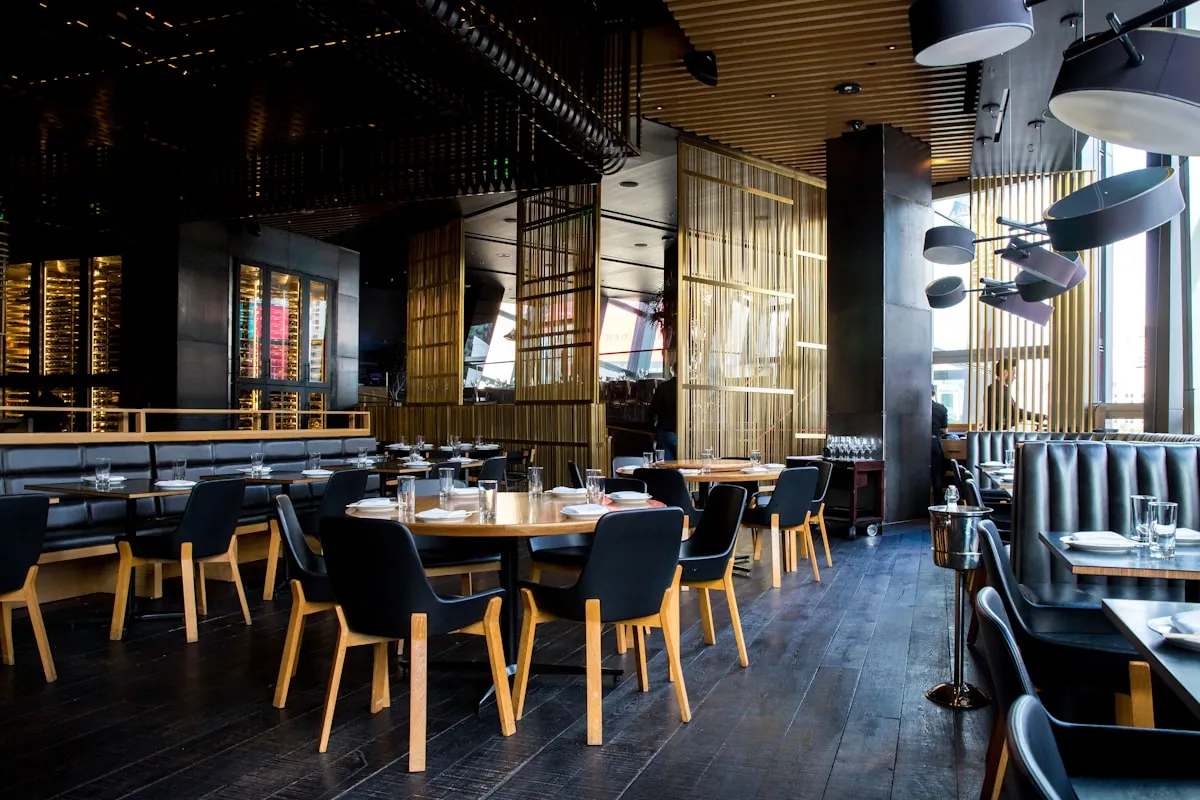
The terrace is closing and with it the strongest quarter of the year. Four things worth doing now — before the numbers drift apart and before nobody has time for them.
First, find out what the season actually earned
The terrace is closing, the furniture goes into storage and service returns to normal. Right now — not in December — is the moment to sit down with the numbers. The data is fresh, the season is closed, and you still remember why the third weekend in August went the way it did.
Start by comparing periods. On the statistics dashboard, set the time filter to the summer months and work through revenue over time, the Top 10 products and the weekly pattern. What you're after is whatever surprises you: an item that sold far better than expected, a weekday that fell behind, or an hour when the kitchen stalled for no good reason.
The Shifts and Closings tabs fill in the other half of the picture — how many people it took to earn that revenue. A seasonal peak can be worked through expensively, and revenue alone won't tell you that.
Stocktaking: now, or never properly
A stock count after the season is the one moment when you have a real chance to bring inventory back in line with reality. After three months of surge trading the discrepancies have piled up — and the longer you wait, the harder it gets to trace where they came from.
You don't have to go straight to a full count. To start where the losses are biggest, run the By category type and take spirits and drinks first. For barcoded goods the Scan type is fastest — items are added by scanning them one after another. A Selective count is the right tool for a handful of specific items you have suspicions about.
One setting is worth enabling: Blind mode. It hides expected quantities while counting, so whoever is counting has no way to “hit” the system's number. A discrepancy found this way is a real discrepancy — which is the whole point.
The result appears as a table of differences, shortages in red and surpluses in green, converted to purchase or selling prices. Saving it creates a stocktaking document and brings the warehouse back in line. If you don't finish in one go, no harm done: an unfinished count saves itself as a draft.
What your accountant wants — and how to send it
Your accountant needs numbers, not access to your register. Under More > Data > Export you generate exactly what they need and send them a finished file.
The foundation is the Revenue export for a chosen period. The PDF contains a summary, payment methods, categories, top products, a tax breakdown and a daily overview — typically everything required to close a period. If they want to run their own calculations, send the XLSX; it has Receipts, Order items and Payments sheets.
Two reports cover inventory: Stock status as a snapshot of current stock, including low and negative items, and Stock movements for the period with receipts, issues and sales. Both make the most sense right after a completed count — the figures in them finally match reality.
Before you send anything, check it on the Taxes tab in the statistics. It breaks revenue down by rate with the tax base and VAT in a single table. If something doesn't add up, you'll spot it here rather than hearing about it from your accountant.
Set winter up around what you found
The last step is the one that most often never happens: adjusting the operation for winter based on what the numbers told you.
Go through the catalog and decide what stays from the seasonal offer. Categories you won't use over winter can be switched off with the Active toggle — the data stays, it just stops getting in staff's way while they search. You turn them back on in spring.
The same works for price levels, which is the single most useful detail for a terrace: a deactivated level stops being offered in the register and in the product editor, but its definition — including per-item prices — is preserved for when you switch it back on. So there's nothing to re-price next spring; you simply put the level back into service. If you run timed levels, verify for real once the terrace closes that they switch as intended. Better now than in front of your first guest.
And finally, take a backup. Under More > Data > Backup you get an encrypted .kasyro file containing your complete company data — store it somewhere other than the POS device. That locks in the state at the end of the season, after the stocktake and the exports. If something goes wrong over winter, you have somewhere to go back to.